 HIXOR
Changing or Losing Your Phone Without Losing Your Accounts
Key points
- What hurts is not losing the device — it's losing your way of signing in. Authenticator apps, SMS codes and passkeys all live on the phone
- A phone change is won or lost while the old phone is still in your hand: finish the migration and verify it before you let the old phone go
- If you lose the phone, order matters: find & lock → suspend the line → email password → money accounts
- Backup codes and up-to-date recovery contact details are your last line of defence
When a phone is replaced or lost, the real problem is not the hardware — it is that you can lock yourself out of your own accounts. Authenticator apps, SMS codes and passkeys all live on the phone. This guide covers what to do before a phone change, and what to do — in order — when a phone is lost.
Why a "device event" is really an "account event"
A modern phone is a telephone and, at the same time, a bundle of keys. Email, banking, shopping, social media, work services — many of them leave the sign-in check to the phone: the numbers in an authenticator app, the code that arrives by SMS, the passkey stored on the device. All of it sits in that one handset.
So when a phone is replaced or lost, the real problem is not the hardware. It is that you can lock yourself out of your own accounts. The good news: with the right order of operations, a device event stays a chore instead of becoming a crisis.
For setting up multi-factor authentication itself, see "Getting Started with Multi-Factor Authentication". This article is about what happens when the device changes or disappears.
Before you change phones (while the old phone is still with you)
One rule governs everything: do not let go of, or wipe, the old phone until you have confirmed you can sign in to everything on the new one. Work through the steps in order.
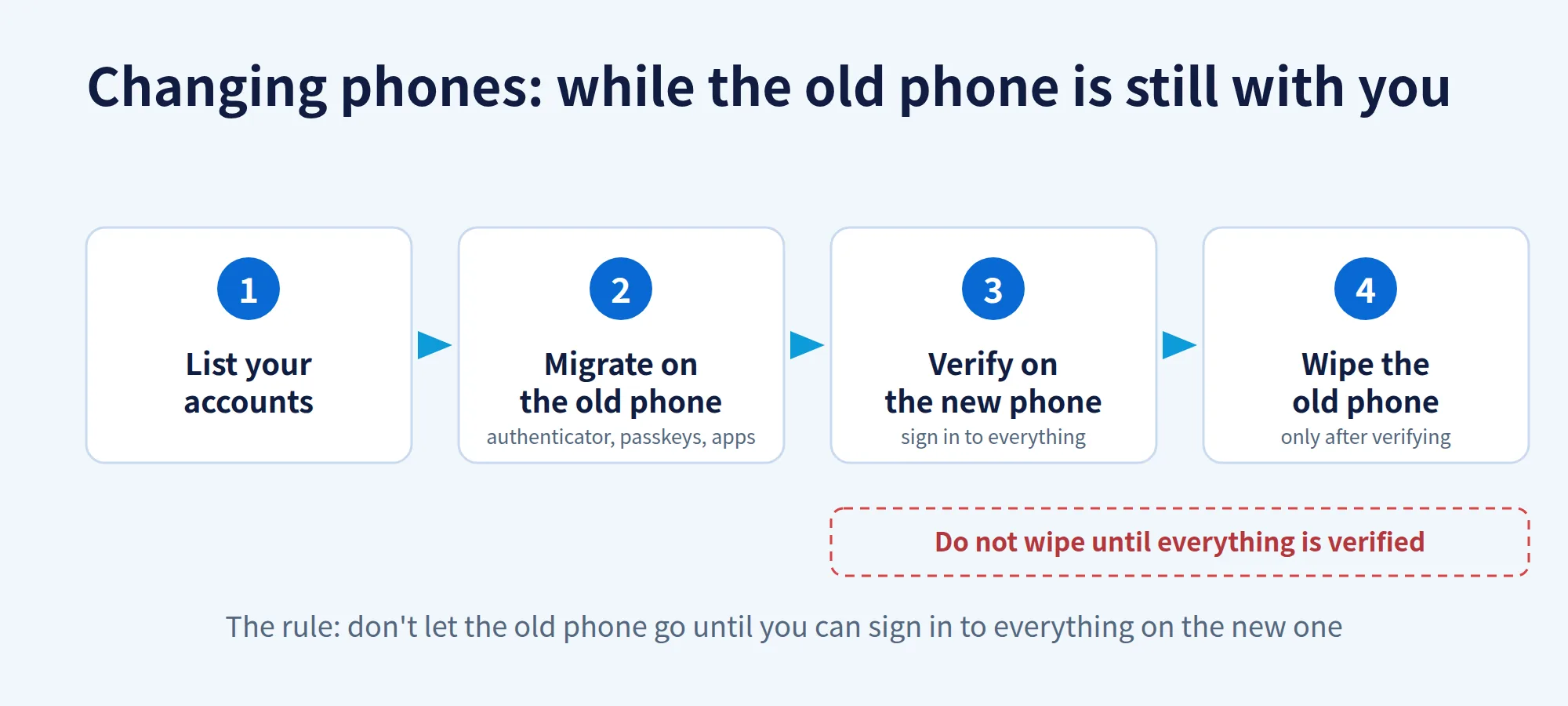
1. List the accounts you sign in to
Write down the services you use on the phone: email, money (banking, cards, payments), social media and messaging, work, government services. The easy ones to forget are the ones you rarely open. If you use a password manager, its list doubles as this inventory (see "Stop Reusing Passwords").
2. Move the authenticator app and your passkeys
Each service handles authenticator migration differently. Where the app offers a transfer feature (such as scanning a QR code), use it; where it doesn't, register the new phone again from the service's settings. Confirm a code from the new phone actually works before removing the old phone's registration.
Passkeys are usually carried to the new phone through your Apple or Google account. Sign in to the new phone with the same account and check that passkey sign-in works for your main services.
3. Check your backup codes
If you get stuck mid-change, backup (recovery) codes get you back in. For your main services — email and money first — confirm that you have the codes and know where you kept them. The reasoning and how to store them are covered in the "Preparing for a new or lost phone: backup codes" section of "Getting Started with Multi-Factor Authentication".
4. Transfer your messaging apps
For apps such as LINE, the pattern is: take the in-app chat backup on the old phone first, then transfer the account. Without the old phone in hand, chat history often cannot be restored. If you use a carrier email address, check its transfer procedure too.
5. Move banking and payment apps one at a time
Banking and payment apps often require re-registration on a new device. Move them one at a time: register on the new phone, verify it works (you can see the balance, a small action succeeds), and deregister the old phone where the service offers that step. Finishing each one completely before starting the next is the safe way.
6. Bring recovery contact details up to date
Check that the phone number and email address registered for account recovery are your current ones on each service. This matters most when the change also changes your number: recovery codes sent to an old number never reach you.
7. Finally, wipe the old phone
Only after every check above passes, erase (factory-reset) the old phone. The manufacturers' guidance is to sign out of your services and turn off the "find my device" feature before the reset, ahead of trade-in or handing it over.
If you lose your phone (in this order)
When you notice the loss, don't panic — work from the top. The order has a reason: protect the device first, then the line, then the accounts.
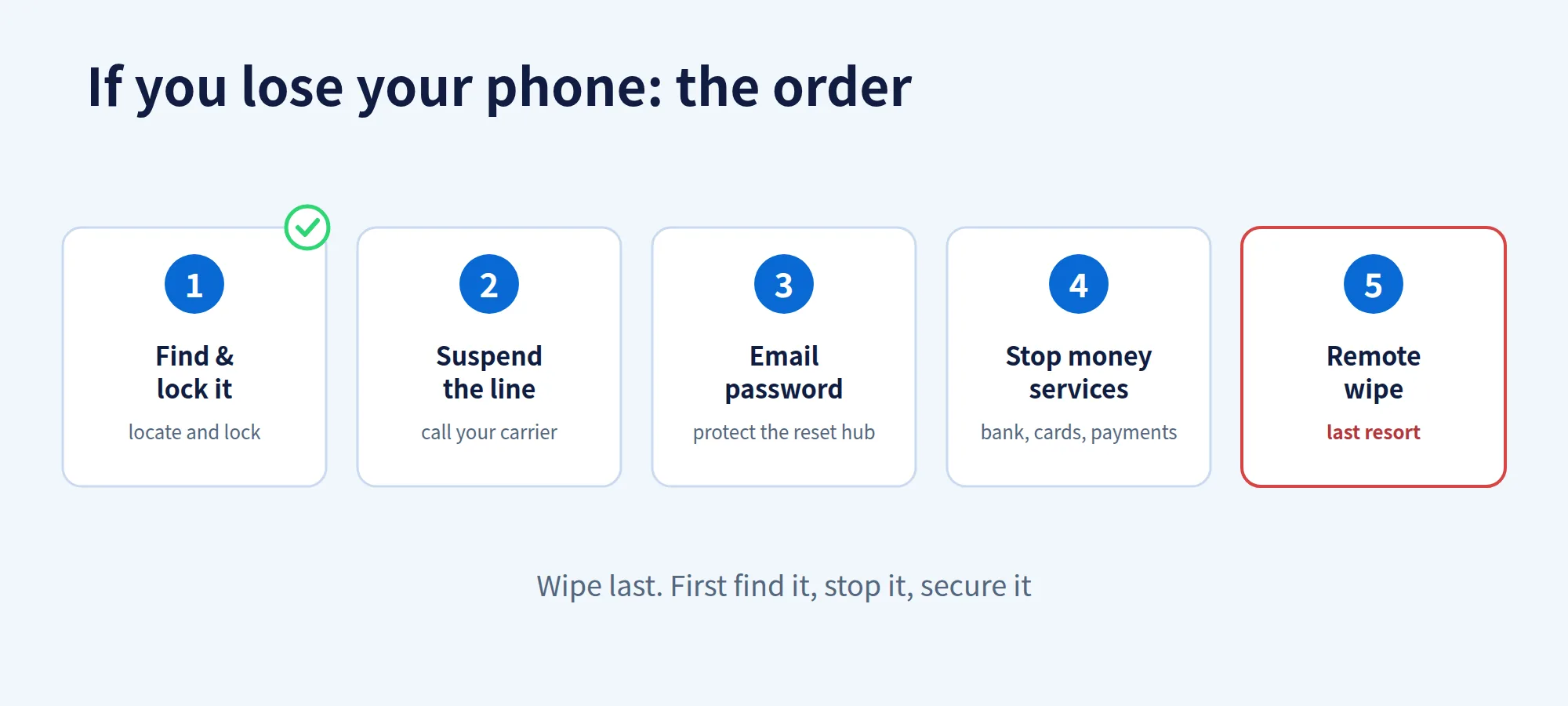
1. Use "Find" to locate and lock it
From another device or a computer, open Find My (iPhone) or Find My Device (Android). If the location shows, first lock the screen and display a contact message (such as Lost Mode). Do not erase yet — an erased phone can no longer report its location.
2. Ask your carrier to suspend the line
Contact your mobile carrier's lost-phone desk and ask for a temporary suspension of the line. This stops calls and SMS to that number, which also blocks misuse of SMS sign-in codes. Major carriers have a suspension procedure for lost phones; check your carrier's official guidance for the details.
3. Change your email account password
From another device, change your email password first. Email is where most services send password resets — it is the key to the front door. Securing it early makes it harder for anyone to reset your other accounts ahead of you. Check the sign-in history for anything you don't recognise.
4. Stop the money services
Contact your bank, card issuers and payment app providers to suspend use or reissue credentials. If you used phone-based payments, include those in the suspension.
5. Change passwords on your main services and review sign-in history
For social media, shopping and work services, change the passwords and review the sign-in history. If you find a sign-in that isn't yours, follow that service's guidance for securing the account.
6. If recovery is unlikely, erase remotely
When there is no realistic prospect of getting the phone back, erase its data remotely through Find My / Find My Device. Erasure cannot be undone, which is why it comes last.
7. Police report, a reissued SIM, and getting back in
File a lost-property report with the police; it can help with recovery and with later paperwork. Then have your carrier reissue the SIM (or eSIM), and sign back in to each service on the new phone. This is where the backup codes you saved earn their keep.
Standing preparation (do it today)
- Saved the backup codes for my main services, stored somewhere safe and separate from my passwords
- Recovery phone number and email address are my current ones
- Find My (iPhone) / Find My Device (Android) is turned on
- A screen lock is set, and device backups run automatically
- My carrier's lost-phone contact is written down somewhere other than the phone (a notebook, a family member's phone)
For the workplace side — what a company should do when an employee loses a device — see the "lost device" section of "Rolling Out MFA in a Small Business".
Summary: today's checklist
- Listed the accounts I sign in to
- Decided: verify the migration on the new phone before letting the old one go
- Confirmed where my backup codes are kept
- Shared the loss order (find & lock → suspend the line → email → money) with my family
Check your understanding
Q1. When is the right time to let go of your old phone in a phone change?
Answer: After you have confirmed you can sign in to every account on the new phone. Wiping or trading in the old phone before that can take the authenticator app and your recovery options with it — and lock you out.
Q2. You notice your phone is lost. What is the first thing to do?
Answer: Locate and lock it with Find My (iPhone) or Find My Device (Android). Do not erase it yet — an erased phone can no longer report its location.
Q3. Why ask the carrier to suspend the line when a phone is lost?
Answer: To stop calls and SMS to that number, so nobody can use the sign-in codes sent by SMS. You secure the line itself alongside the accounts on the device.
Review your current posture with 25 questions. Runs in your browser only.
Check your understanding
Tap an answer to check yourself. Nothing is saved or sent.
Start the quiz3 questions
Q1. When is the right time to let go of your old phone in a phone change?
See the answer
Wiping or trading in the old phone before that can take the authenticator app and your recovery options with it — and lock you out.
Q2. You notice your phone is lost. What is the first thing to do?
See the answer
An erased phone can no longer report its location. Find and lock first; erase only when recovery is unlikely.
Q3. Why ask the carrier to suspend the line when a phone is lost?
See the answer
You secure the line itself alongside the accounts on the device.
See the latest threat intelligence